Overview
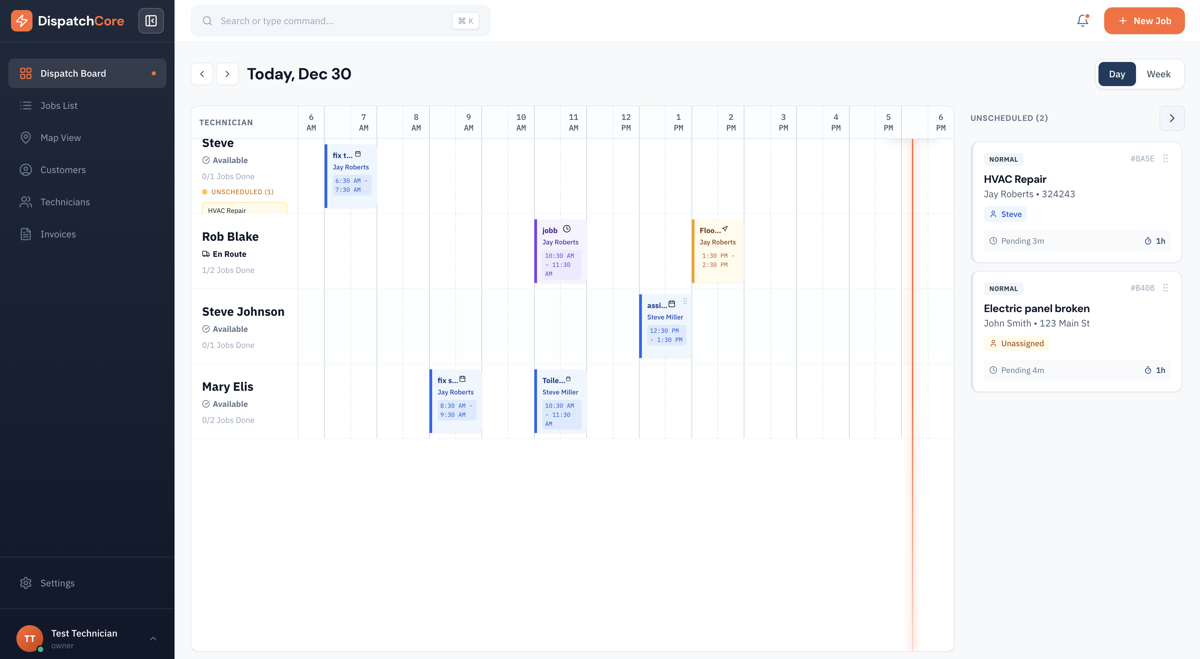
The dispatch board is the central hub of DispatchCore. It shows every technician's schedule on a visual timeline, with jobs displayed as colored blocks that you can drag, resize, and reassign with a click.
Think of it as a digital version of the office whiteboard — except it updates in real time, works from anywhere, and can't be accidentally erased.
Day, Week & Month Views
The dispatch board offers three views to match how you plan:
- Day View — Shows a single day with hourly time slots (6 AM – 8 PM) for each technician. Best for managing today's schedule and making real-time adjustments.
- Week View — Shows the full week at a glance with one column per day per technician. Best for planning ahead and spotting availability.
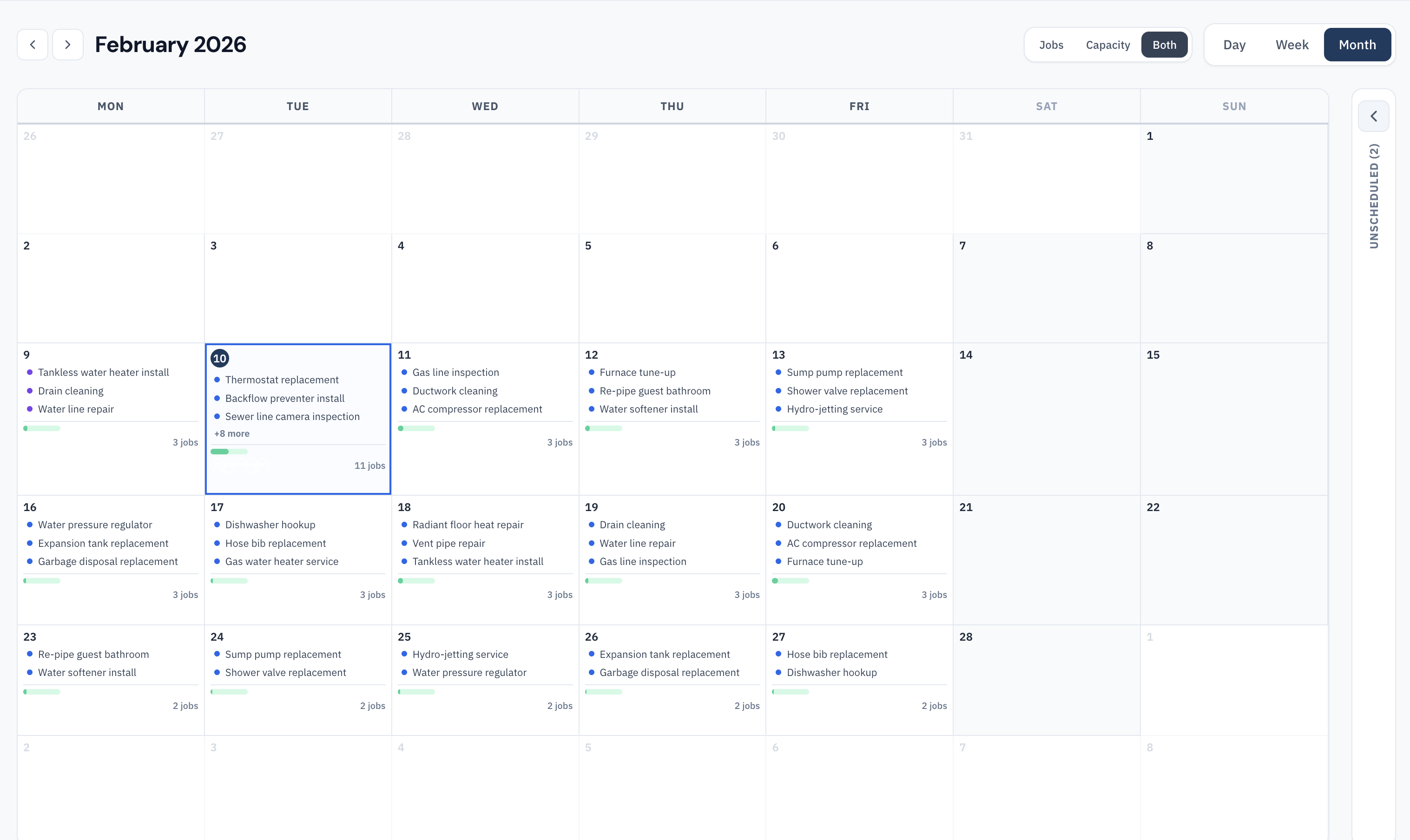
- Month View — Shows the entire month as a calendar grid with job counts and capacity bars per day. Best for high-level planning and identifying busy vs. light days.
Switch between views using the toggle in the top-right corner, or use keyboard shortcuts: D for day view, W for week view, M for month view.

Layout Orientation
The dispatch board supports two layout orientations:
- Horizontal (default) — Technicians as rows, time slots as columns. Best for teams of 3–8 techs.
- Vertical — Technicians as columns, time slots as rows. Useful when you have fewer techs but longer work days.
Toggle the orientation using the layout button in the board toolbar.
Assigning Jobs
There are several ways to assign a job to a technician:
- Drag and drop — Drag an unassigned job from the sidebar onto a tech's time slot. This is the fastest method for single-tech assignments.
- Click to assign — Click on an empty time slot to create a new job pre-assigned to that tech at that time.
- Edit modal — Open any job and select technician(s) from the assignment dropdown. Use this for multi-tech assignments.
Multi-tech jobs: When a job requires more than one technician (e.g., a large installation), assign multiple techs through the job edit modal. The job appears on each assigned tech's timeline. Drag-and-drop always replaces the current assignment — use the modal to add technicians.

Unassigned Jobs Sidebar
The left sidebar shows all unassigned jobs — jobs that have been created but not yet assigned to a technician. These are sorted by priority (Emergency first, then High, then Normal) and then by scheduled date.
Drag a job from this sidebar onto any technician's timeline to assign it. Jobs disappear from the sidebar once assigned.
Job Status Colors
Jobs on the board are color-coded by their current status:
- ● Pending — Waiting to be assigned
- ● Assigned — Tech has been assigned but hasn't started
- ● Scheduled — Confirmed on the schedule
- ● En Route — Tech is driving to the job site
- ● In Progress — Tech is on-site and working
- ● Completed — Job finished
- ● Cancelled — Job was cancelled
These colors update in real time as technicians change their status from the mobile app.
Keyboard Shortcuts
Speed up your dispatching with these keyboard shortcuts:
| Shortcut | Action |
|---|---|
| D | Switch to Day view |
| W | Switch to Week view |
| M | Switch to Month view |
| T | Jump to Today |
| ← | Previous day/week |
| → | Next day/week |
| ⌘K / Ctrl+K | Open Command Bar |
Real-Time Updates
The dispatch board updates automatically when technicians change job status from the mobile app. You'll see status color changes, arrival times, and completion updates without refreshing the page.
A live indicator in the board header confirms you're connected and receiving real-time updates. If your connection drops, the board will automatically reconnect and sync any missed updates.