Creating Jobs
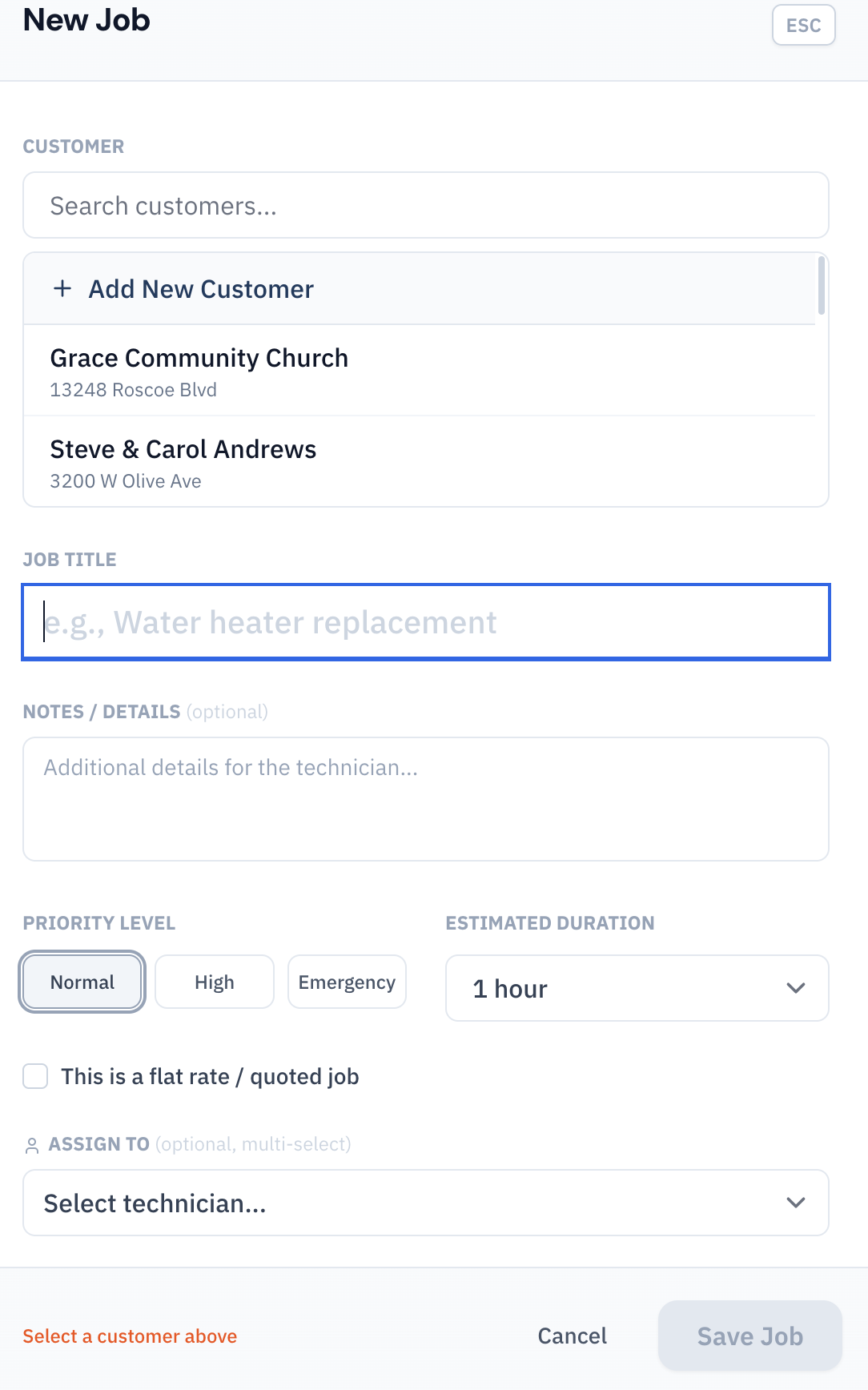
Create a new job from the Jobs page by clicking "Create Job," or from the dispatch board by clicking an empty time slot. Every job requires at minimum a title and a customer.
Job fields include:
- Title — Short description of the work (e.g., "AC Not Cooling," "Water Heater Install")
- Description — Detailed notes about the issue, equipment, or special instructions
- Customer — Select an existing customer or create a new one inline
- Scheduled Date & Time — When the job should be performed
- Estimated Duration — How long the job is expected to take (affects block size on the dispatch board)
- Priority — Normal, High, or Emergency
- Technician(s) — Assign one or more technicians
Job Priorities
Every job has a priority level that affects its visibility and sorting:
- Normal — Standard priority. Default for new jobs.
- High — Important jobs that should be handled promptly. Displayed with a yellow indicator.
- Emergency — Urgent jobs requiring immediate attention. Displayed with a red indicator and sorted to the top of all lists.
Emergency jobs appear at the top of the unassigned sidebar on the dispatch board, making them impossible to miss.
Job Status Workflow
Every job follows a defined status workflow. Status changes are primarily made by technicians from the mobile app, though dispatchers can also update status from the web dashboard.
- Pending — Job created but not yet assigned to a technician
- Assigned — Technician has been assigned but work hasn't been acknowledged
- Scheduled — Job is confirmed on the schedule
- En Route — Technician is driving to the job site (GPS location captured)
- In Progress — Technician is on-site and working (GPS location captured)
- Completed — Job is finished (GPS location captured)
- Cancelled — Job was cancelled (can be set at any point)
Each status transition is timestamped and GPS-stamped automatically, creating a complete audit trail for every job.
The Jobs List
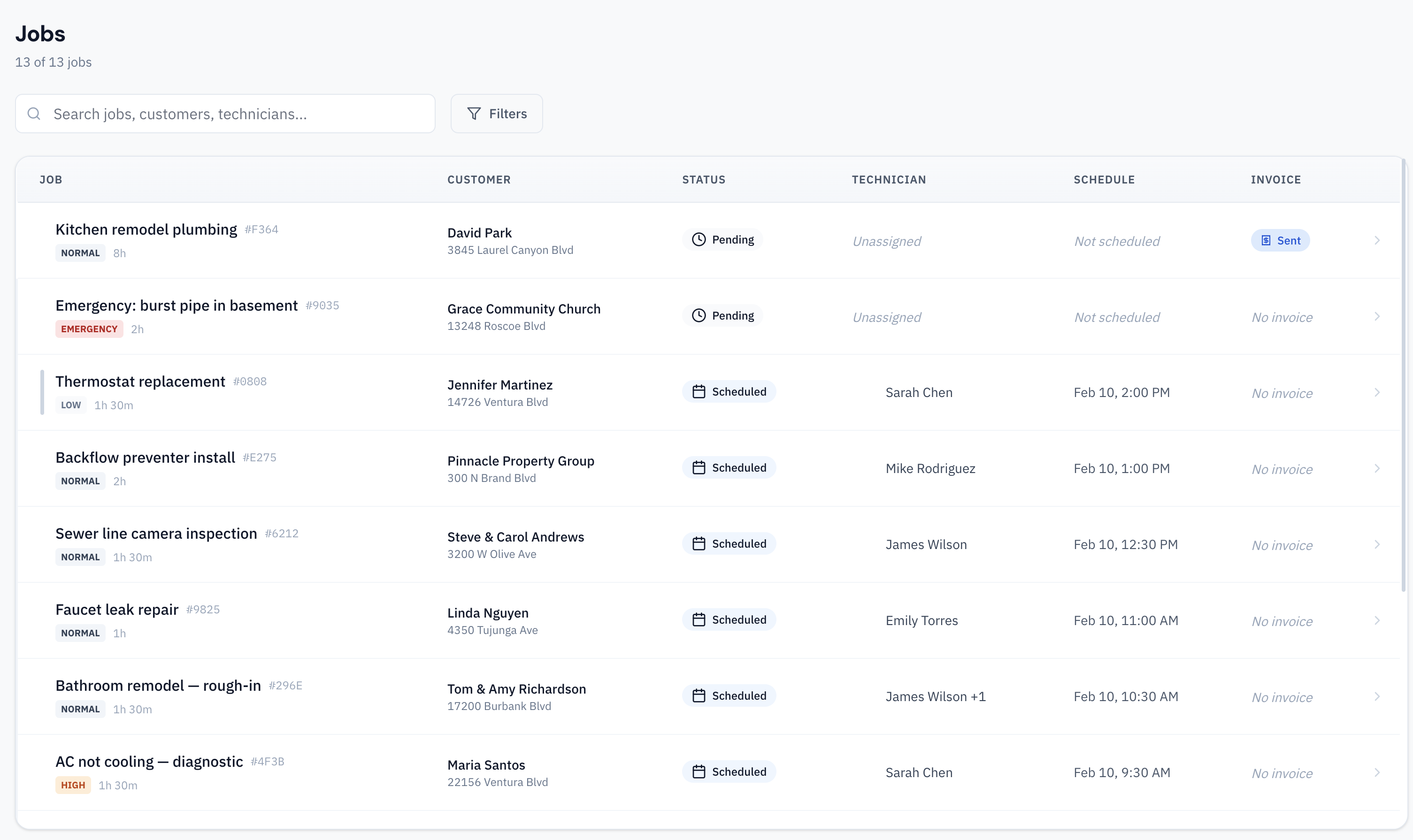
The Jobs page shows all jobs in a searchable, filterable list. Use the filters to narrow by:
- Status — Show only pending, in-progress, completed, etc.
- Technician — Show jobs assigned to a specific tech
- Date range — Filter by scheduled date
- Priority — Show only emergency or high-priority jobs
Click any job to open its detail modal, where you can edit all fields, view the status timeline, and see attached photos and notes.
Command Bar
Press ⌘K (Mac) or Ctrl+K (Windows) anywhere in the dashboard to open the Command Bar — a quick-access search and action launcher.
Use it to:
- Search jobs — Type a job title, customer name, or address to find any job instantly
- Search customers — Find a customer record without navigating away
- Navigate — Jump to any page (Dispatch, Jobs, Customers, Technicians, Map, etc.)
- Quick actions — Create a new job or customer directly from the command bar
The command bar searches across all data in your account, making it the fastest way to find anything.
Editing and Deleting Jobs
Click any job on the dispatch board or jobs list to open the edit modal. You can modify any field — title, description, customer, scheduled time, priority, and technician assignment.
To delete a job, open the edit modal and click "Delete Job" at the bottom. Deleted jobs are permanently removed. If you want to keep the record but cancel the work, change the status to "Cancelled" instead.