Technician Roster
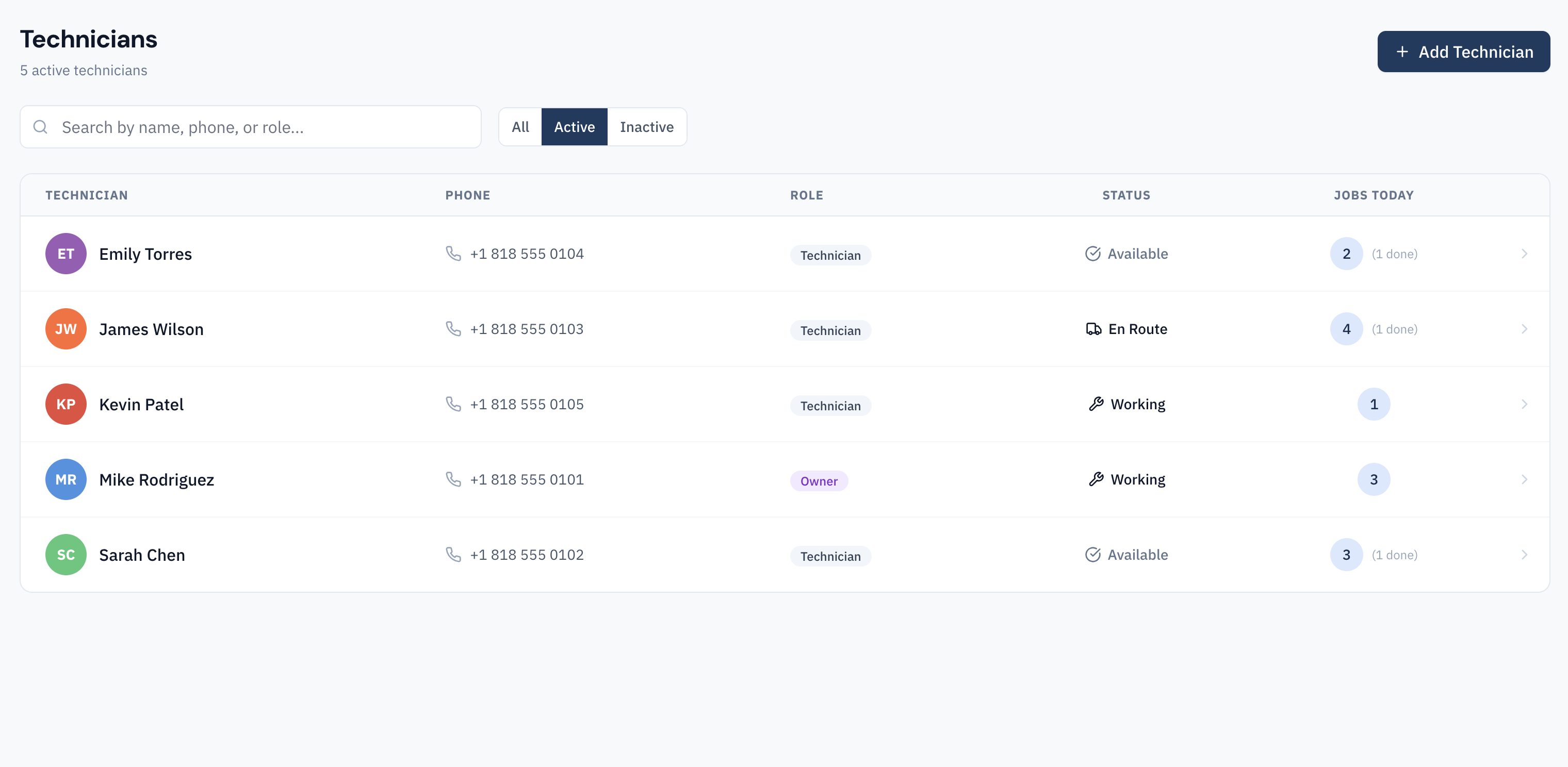
The Technicians page shows your full team roster with each tech's current status, contact information, and workload for the day. This gives you a quick overview of who's available, who's busy, and who's off.
Adding Technicians
Click "Add Technician" and enter the tech's name, email, and phone number. They'll receive an email invitation to set up their mobile app account.
There's no limit on the number of technicians you can add. Your flat monthly rate covers your entire team — whether you have 2 techs or 20.
Each new technician automatically gets:
- A row on the dispatch board
- Access to the mobile app
- Their own job queue and schedule
Availability and Workload
The technician list shows real-time availability info:
- Current status — What the tech is doing right now (idle, en route, on a job)
- Jobs today — Number of jobs assigned for the current day
- Jobs this week — Weekly workload at a glance
This helps you make smarter dispatch decisions — assign new jobs to the tech with the lightest schedule or the one who's closest to finishing their current job.
Active and Inactive Technicians
When a technician leaves your team or goes on extended leave, you can deactivate their account rather than deleting it. Deactivated technicians:
- No longer appear on the dispatch board
- Cannot log into the mobile app
- Retain their complete job history for your records
You can reactivate a technician at any time, and their full history will be restored.